

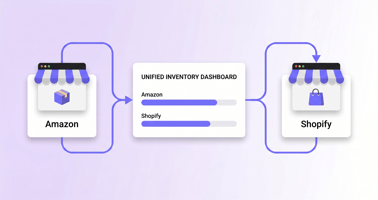
Learn how to sync Amazon and Shopify inventory without overselling FBA reserved units. An Amazon...

In this article
- Shopify to Amazon vs. Amazon to Shopify: Two Different Workflows
- What You Need Before Connecting Shopify and Amazon
- Publish Your Catalog with Marketplace Connect
- What Data Syncs Between Shopify and Amazon?
- Move Your Amazon Catalog into Shopify
- Common Shopify-Amazon Import Problems and Fixes
- Should You Migrate the Catalog or Keep Both Channels Synced?
- How NeonPanel Helps After Amazon and Shopify Are Connected
- FAQ
Moving a catalog between Shopify and Amazon sounds like one task, but there are two very different workflows. A seller may want to publish Shopify products on Amazon and keep them synchronized, or move product data from an existing Amazon catalog into Shopify.
The first workflow is ongoing marketplace integration. The second is migration. They use different tools, data rules, and checks, so choosing the direction before touching listings prevents duplicate products, inventory conflicts, and fulfillment mistakes.
This guide shows the current Shopify Marketplace Connect workflow for Amazon, explains the reverse migration path, and gives a practical checklist for product data, inventory, orders, and post-connection operations.
Shopify to Amazon vs. Amazon to Shopify: Two Different Workflows
If you want to import Shopify to Amazon, the practical goal is usually to list products from the Shopify catalog on Amazon and then keep price, quantity, orders, and selected listing fields aligned. Shopify Marketplace Connect is designed for that ongoing connection.
An Amazon to Shopify product import is different. It normally means taking product information that already exists in Amazon Seller Central and creating Shopify products from it. That can be a one-time migration, a staged move, or the first step before operating both channels.
| Scenario | Primary goal | Typical method | Ongoing sync? |
|---|---|---|---|
| Shopify → Amazon | Publish Shopify catalog on Amazon | Shopify Marketplace Connect | Yes |
| Amazon → Shopify | Create Shopify products from Amazon data | Store Migration app, CSV, or migration app | Usually no |
| Operate both channels | Keep listings and stock coordinated | Marketplace connector plus clear inventory rules | Yes |
The direction matters because product ownership is not identical to data synchronization. Amazon has marketplace-specific categories, attributes, identifiers, and shared listing content. Shopify has its own variants, product options, collections, and inventory-location model.
What You Need Before Connecting Shopify and Amazon
Before you publish anything, prepare both accounts. Shopify Marketplace Connect requires an Amazon seller account that is already set up and approved for the marketplace where you plan to sell. Amazon can also require category approval or product identifiers for specific listings.
- A verified Amazon seller account with payment and bank details, marketplace/category approval, and rights to sell the products and contribute listing content.
- Reliable SKU, UPC, EAN, ISBN, or other GTIN data where Amazon requires a product identifier. Some products may qualify for an exemption, but that is an Amazon decision.
- Clean Shopify titles, images, descriptions, variants, weights, and inventory quantities. Bad source data becomes bad marketplace data faster when sync is automated.
- A fulfillment decision for each product: Fulfilled by Merchant, Fulfillment by Amazon, or another supported operating model.
- One connector controlling the marketplace relationship. Shopify warns against using multiple marketplace connector apps at the same time because overlapping sync rules can create conflicts.
Two connector apps can send conflicting updates for price, quantity, orders, or listings at the same time, so only one app should ever control a given Amazon marketplace connection.
Also decide which system is authoritative for inventory and which fields can be customized on Amazon. A seller who changes quantity in two systems without a clear source of truth can create overselling even when both apps are functioning correctly.
Publish Your Catalog with Marketplace Connect
The Shopify-native route for publishing your catalog on Amazon is Marketplace Connect, formerly Codisto. It connects the Shopify catalog to Amazon and lets the merchant create or manage marketplace listings from Shopify admin.
- Install Shopify Marketplace Connect and open it from Shopify admin. Review the app requirements before connecting a marketplace.
- Connect the Amazon seller account for the marketplace you want to use. Complete Amazon sign-in and authorization prompts.
- Open the Listings area, select Amazon, and choose the Shopify products you want to publish or link.
- For each product, match an existing Amazon listing when the same product already exists, or create the required Amazon listing data when it does not.
- Map the Amazon category, product type, required attributes, identifiers, and variation information. Apparel and other categories can have additional size or attribute requirements.
- Set price rules, quantity rules, and the fulfillment method. Review Amazon-specific values instead of assuming Shopify defaults are suitable for every marketplace.
- Publish the listing, then verify the live Amazon detail page, offer price, available quantity, variation structure, and fulfillment status before enabling the workflow across the full catalog.
Start with a small product group when the catalog is large. A pilot makes mapping problems visible before hundreds of listings inherit the same incorrect category, attribute, or pricing rule.
Match Existing Amazon Listings or Create New Listings
Amazon separates shared listing content from a seller offer. The listing contains information such as images, title, description, and identifiers. The offer contains seller-specific values such as price, quantity, and fulfillment.
That distinction is important when the product already has an ASIN. Creating a duplicate detail page for an item that should match an existing listing can cause catalog problems. When a new listing is required, the category and required attributes must be completed accurately.
Configure Price, Inventory, and Fulfillment Rules
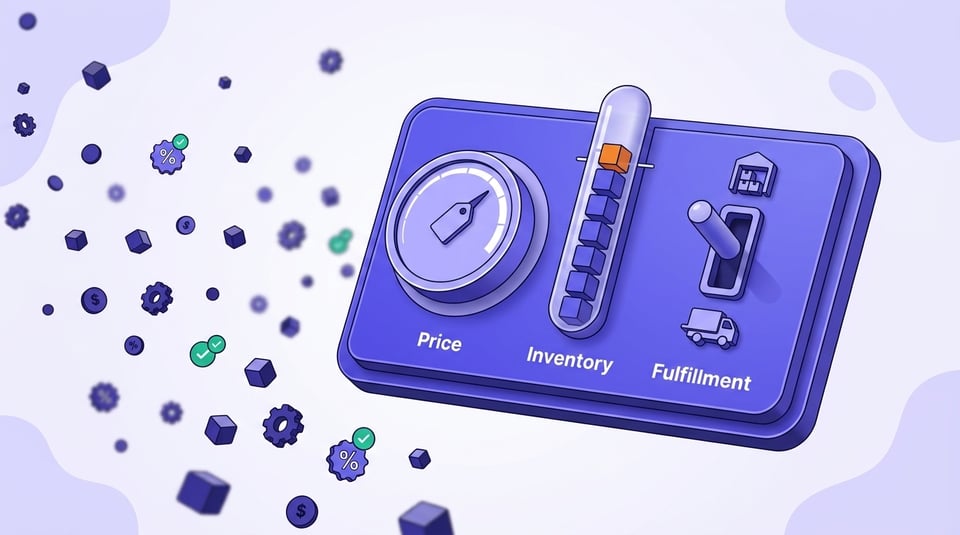
Marketplace Connect supports Amazon defaults such as a price rule, a quantity rule, and the fulfillment choice. Quantity rules can include a buffer or maximum so the marketplace does not expose every unit that exists in the source inventory.
For FBA, inventory is stored and shipped by Amazon. For merchant fulfillment, orders can flow back to Shopify for fulfillment and tracking. The right choice depends on where stock is physically held and which system should update availability.
What Data Syncs Between Shopify and Amazon?
The value of a connector is not the initial upload; it is the controlled synchronization after the listing is live. Merchants should know which fields are synchronized, which can be turned off, and which remain marketplace-specific.
| Data area | Typical behavior | What to verify |
|---|---|---|
| Listing content | Titles, images, descriptions, identifiers can be sent from Shopify | Amazon catalog rules and existing ASIN content |
| Price | Can follow Shopify through a configured price rule | Marketplace margin, currency, promotions |
| Inventory | Quantity can sync with buffers or caps | FBA stock, reserved stock, source of truth |
| Orders | Marketplace orders can import into Shopify based on settings | Tax handling and fulfillment method |
| Fulfillment | FBM or FBA rules can be configured | Where tracking and stock updates originate |
| Amazon-specific attributes | May require category-level mapping | Required fields, variations, compliance data |
Shopify also lets merchants turn off listing-detail sync when they prefer to maintain titles, descriptions, or images directly on Amazon. That can be useful when Amazon content needs different merchandising, but it increases the number of fields that teams must govern manually.
Order import settings are separate from product listing sync. A seller can configure which marketplace orders enter Shopify, when they import, and how tax information is handled. Test the full order-to-fulfillment loop before scaling.
Move Your Amazon Catalog into Shopify
To understand how to import products from Amazon to Shopify, start with the migration options rather than treating Marketplace Connect as a reverse-copy button. Shopify documents a workflow using its Store Migration app, CSV files, third-party migration apps, or manual entry depending on catalog size and complexity.
Before moving your catalog, confirm that you control the Amazon product data being migrated. Moving your own seller catalog is different from copying another seller's content, images, or branded material.
A one-time transfer creates the products in the destination store. It does not replace the separate plan for future price, inventory, and order synchronization when both channels remain active.
Method 1: Shopify Store Migration App
Shopify offers a first-party Store Migration app in early access for eligible stores. Its Amazon workflow can accept an exported Amazon CSV and create Shopify products without requiring the merchant to manually rebuild every column before upload.
The migration still has limitations. Shopify notes that product options, location-based inventory, and location-specific pricing do not map one-for-one in every case. Review the post-import report and correct exceptions before publishing products to customers.
Method 2: Export Amazon Data and Use a Shopify CSV
- In Amazon Seller Central, request an Active Listings or appropriate inventory report for the catalog you own.
- Download the data and map Amazon fields to the Shopify product CSV structure. Typical mappings include item name to title, seller SKU to variant SKU, quantity to inventory quantity, and price to variant price.
- Remove fields Shopify does not accept, add missing Shopify columns where needed, and check variants carefully. Keep a backup of the raw Amazon export.
- In Shopify admin, use Products > Import, upload the prepared CSV, preview the result, and import a limited batch first.
- Review product details, images, variants, weights, prices, inventory, visibility, collections, and SEO fields after import. Do not assume a successful upload means every field is commercially correct.
Method 3: Third-Party Migration Apps
Third-party tools can help import Amazon products to Shopify with less spreadsheet mapping for large or complex catalogs. Evaluate supported fields, variants, images, update behavior, error logs, and data permissions. Check whether the tool supports migration, affiliate importing, dropshipping, or ongoing synchronization.
The safest tool is the one that matches the business model. An affiliate importer is not automatically suitable for migrating your own Seller Central catalog, and a migration utility is not automatically a long-term inventory sync system.
Common Shopify-Amazon Import Problems and Fixes
| Problem | Why it happens | Practical fix |
|---|---|---|
| Duplicate Amazon listing | New listing created instead of matching an existing ASIN | Verify identifier and match the existing catalog page |
| Identifier or category error | UPC/EAN/GTIN or required attributes are missing | Correct identifiers and complete Amazon category fields |
| Broken variants | Option structures do not map cleanly | Test parent/child variations and Shopify options on a small batch |
| Inventory conflict | Two apps or systems update quantity | Choose one connector and one inventory source of truth |
| Wrong fulfillment | FBA/FBM setting does not match physical stock | Review fulfillment defaults before publishing |
| Content mismatch | Amazon needs different titles or attributes | Use Amazon-specific fields or disable selected detail sync |
A clean import checklist should include both technical and commercial review. A listing can be technically accepted while showing the wrong price, incomplete variation data, an unsuitable quantity rule, or a fulfillment method the operations team cannot support.
Should You Migrate the Catalog or Keep Both Channels Synced?
Choose migration when Amazon is the old system and Shopify will become the primary storefront, or when you need a one-time transfer before rebuilding the operating stack. Choose ongoing integration when both Amazon and Shopify will continue generating orders.
If both channels remain active, an Amazon to Shopify import is only the start. The business also needs inventory controls, channel-specific pricing, returns handling, fulfillment rules, and a reliable way to compare sales and profitability across marketplaces.
For a staged transition, migrate a controlled product group first, reconcile SKU mappings, and document which platform owns each field. Expand only after orders and inventory behave correctly in real transactions.
How NeonPanel Helps After Amazon and Shopify Are Connected
NeonPanel is not a catalog import or listing-creation tool, so it does not replace Shopify Marketplace Connect or an Amazon-to-Shopify migration utility. Its role begins after channel data is connected and the business needs a consistent operational and financial view.
For stock control, NeonPanel Inventory Management can bring multi-channel inventory into one operating layer. Channel-specific pages for Amazon inventory and Shopify inventory help teams review the two sides without relying on separate spreadsheets.
For performance review, teams can use Amazon analytics and Shopify analytics. Ecommerce accounting then connects channel transactions, fees, refunds, inventory cost, and accounting workflows so catalog synchronization is not confused with profitability reconciliation.
FAQ
⌄ Can Shopify products be listed on Amazon without recreating them manually?
Yes. Shopify Marketplace Connect can connect a Shopify catalog to Amazon, let sellers match or create marketplace listings, and synchronize supported listing, price, quantity, order, and fulfillment data.
⌄ Do I need an Amazon seller account before connecting Shopify?
Yes. The marketplace account must be set up and approved for the region where you plan to sell. Some categories and products can also require additional Amazon approval or identifiers.
⌄ Can I move my existing Amazon catalog into Shopify with a CSV?
Yes. Shopify documents Amazon migration through its Store Migration app for eligible stores, CSV migration, third-party migration apps, or manual entry. The best method depends on catalog size and mapping complexity.
⌄ Will Amazon and Shopify inventory always match automatically?
Only when the integration, fulfillment model, SKU mapping, and inventory source of truth are configured correctly. FBA stock and merchant-held stock can require different rules, so test quantity behavior before scaling.
⌄ Can I use FBA after publishing Shopify products on Amazon?
Yes. Marketplace Connect supports Amazon fulfillment choices, including FBA and merchant fulfillment. Inventory must be available in the correct fulfillment network and product settings must match the operating model.
⌄ Why should I avoid multiple Amazon connector apps?
Two connector apps can send conflicting updates for price, quantity, orders, or listings. Shopify recommends disconnecting the old connector before switching to Marketplace Connect so one system controls the marketplace relationship.
The key is to separate a one-time catalog move from an ongoing marketplace connection. Use Marketplace Connect when Shopify and Amazon must stay synchronized, use a migration workflow when Amazon data needs to become Shopify products, and verify listings, inventory, fulfillment, and financial reporting before expanding the setup.