
In this article What Is an Amazon Inventory Management Strategy? Key Components of an Effective...
In this article
- What Shopify Gives You Out of the Box
- Third-Party Apps and What Each One Solves
- Setting Up Inventory Tracking: The Right Sequence
- How Shopify Inventory Quantities Work
- Best Practices That Keep Inventory Accurate
- How to Correct Inventory Discrepancies
- Handling Landed Costs in Shopify
- A Faster Way to Manage Shopify Inventory
- FAQ
Shopify inventory management at scale means multi-location stock, bundles, and Amazon FBA in one view. Whether you need Shopify inventory management reports or a practical guide on how to track inventory on Shopify, tie storefront counts to the same ledger finance uses for COGS.
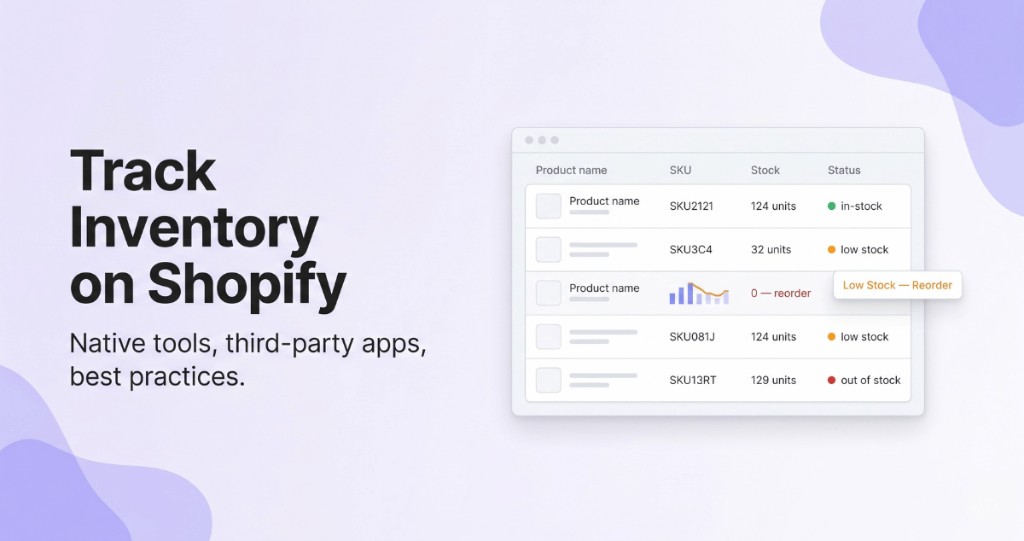
Selling without accurate stock data is one of the fastest ways to lose customers. Overselling, canceled orders, and wrong reorder timing all trace back to the same root problem: inventory that is not tracked properly. This guide covers how to track inventory on Shopify using native tools, which third-party apps solve which problems, and the practices that keep stock accurate as your store grows.
What Shopify Gives You Out of the Box
Before adding any apps, it helps to understand what is already inside your admin. Shopify includes a solid set of native tools that cover the basics for most small and mid-sized stores.
- Stock Tracking — updates quantities per variant automatically after every sale or return
- Multiple Locations — manages stock separately across warehouses, retail stores, and 3PL providers
- Low-Stock Alerts — notifies you when a product drops below a threshold you define
- Inventory History — logs every change with date, reason, and the staff member responsible
- Inventory Transfers — tracks stock movement between locations so both counts stay accurate
- Purchase Orders — creates and sends POs to suppliers from inside Shopify (Plus plan only)
- POS Sync — updates online stock in real time when a sale happens in a physical store
To start tracking inventory on Shopify, open any product in your admin, go to the Inventory section, check "Track quantity," and enter the starting quantity for each variant. Repeat this for every product before you start taking orders.
For a broader view of how Shopify inventory connects to your accounting, see Bookkeeping for Shopify Stores.
Third-Party Apps and What Each One Solves
Native tools stop being enough when you manage bundles, sell across multiple channels, or need automated purchasing. These are the most widely used apps to track inventory in Shopify and the specific gap each one fills.
| App | Best For |
|---|---|
| Stocky | Purchase order management and demand forecasting, built for Shopify Plus |
| Trunk | Syncing stock across locations and tracking bundled products |
| Katana | Stores that manufacture products and need to track raw materials separately |
| SKULabs | High-volume warehouses that rely on barcode scanning and pick-pack workflows |
| ShipBob | Outsourced fulfillment with real-time stock sync across fulfillment centers |
| Stock Sync | Pulling inventory updates automatically from supplier feeds via FTP or Google Sheets |
Match the app to the problem. Overselling across channels points to Trunk or Stock Sync. Slow purchase order management points to Stocky. Production workflows with components point to Katana.
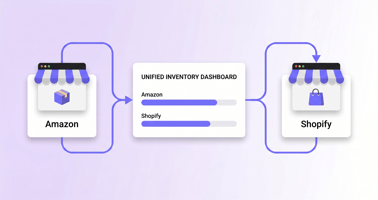
If you also sell on Amazon, see the Amazon and Shopify inventory sync guide for how multi-channel inventory coordination works at scale.
Setting Up Inventory Tracking: The Right Sequence
Getting the setup right from the start prevents most recurring problems when you track inventory in Shopify.
- Go to Settings > Locations and add every place you store products
- Set your primary fulfillment location as the default
- Open each product, enable Track quantity, and enter accurate starting quantities per variant
- Define a low-stock threshold based on your supplier lead time and average daily sales
- If you sell on other platforms alongside Shopify, connect a sync app before you start receiving orders
Starting quantities are your baseline. If they are wrong on day one, every subsequent count will drift further from reality. Take the time to do a physical count — or verify against a recent supplier invoice — before enabling tracking.
How Shopify Inventory Quantities Work
Shopify separates inventory into several states, so the number you see in the admin does not always mean the same thing as the amount available for sale. On hand represents the stock physically assigned to a location, while committed refers to units already allocated to unfulfilled orders. Available shows what can currently be sold, and incoming represents stock expected to arrive.
Understanding these states helps explain why a product can have inventory on hand but still show a lower available quantity. It also makes it easier to identify whether an apparent shortage comes from sales, transfers, unavailable stock, or an incoming shipment.
When checking inventory across multiple locations, review these quantities together rather than relying on a single stock number. This gives you a more accurate picture of what can actually be sold and where additional stock is needed.
Best Practices That Keep Inventory Accurate
1. Structure your SKUs so they mean something
A SKU like MB-HOODIE-BLK-L tells you brand, product type, color, and size without opening the listing. Random or inconsistent SKUs slow down warehouse operations and make bulk track inventory edits unreliable. Build a naming convention once and apply it across your entire catalog.
2. Count small groups regularly instead of everything at once
A full physical inventory count disrupts operations. Instead, count your top 20 bestsellers every week and rotate through slower-moving products monthly. Errors surface faster and corrections are smaller.
3. Keep a buffer for your highest-demand products
Safety stock protects you when a supplier ships late or demand spikes unexpectedly. Calculate it with this formula:
Safety Stock = (Max Daily Sales × Max Lead Time) − (Avg Daily Sales × Avg Lead Time)
Apply this buffer to your top sellers first, not your entire catalog.
4. Make sure every sales channel pulls from the same stock pool
Selling on Amazon or other marketplaces alongside your Shopify store without a sync tool is how double-selling happens. One app handling all channel updates eliminates the risk entirely.
5. Read your inventory reports on a fixed schedule
Three reports inside Shopify Analytics give you the most useful picture when read together. To track Shopify store sales accurately, use:
- Sales by Product — shows which items move and which accumulate
- Average Inventory Sold Per Day — gives sales velocity per variant
- Product Performance — breaks down revenue and returns by variant
Sales velocity combined with current stock levels tells you exactly when each product needs a reorder.
How to Correct Inventory Discrepancies
Inventory discrepancies usually appear when the quantity in Shopify does not match the physical count. Before changing the number, check recent orders, returns, transfers, receiving records, damaged products, and other inventory adjustments to identify what caused the difference.
For a small number of products, you can correct quantities directly from the Inventory page. Larger catalogs can be updated with Shopify's bulk editor or through an inventory CSV workflow. After making adjustments, review the change history to confirm that the correction was applied to the right products and locations.
A regular reconciliation process helps prevent the same discrepancies from appearing again. If the same SKUs repeatedly require manual corrections, investigate the underlying process rather than simply changing the quantity each time.
Handling Landed Costs in Shopify
Shopify's native tracking handles unit counts reliably, but it has no concept of the freight, duties, insurance, and 3PL prep fees that determine what a product actually costs you. A product might show 200 units at a $12 purchase price — but once you add $3 in freight, $1.50 in duty, and $0.50 in prep fees, the real landed cost is $17. That $5 gap per unit compounds across thousands of orders and makes Shopify's COGS estimates unreliable for any brand sourcing internationally or using FBA or AWD.
This is a structural limitation, not a configuration problem. Shopify does not allocate shipment-level costs to receipt batches, so it cannot produce defensible COGS figures for your accountant or your P&L. The more your product mix varies in sourcing geography, supplier terms, or fulfillment path, the wider that gap becomes.
NeonPanel's landed cost allocation and FIFO COGS engine fills this gap. It allocates freight, duty, and supplier costs to receipt batches at the shipment level, runs true FIFO cost consumption as units sell, and posts the resulting COGS entries directly to QuickBooks or Xero. The result is a defensible, audit-ready cost layer on top of your Shopify stock counts — one your finance team can stand behind at month-end close or during due diligence.
If landed costs are currently a spreadsheet exercise or an estimate, this is the layer worth adding alongside your Shopify inventory setup. See the full overview at neonpanel.com/landed-cost-fifo.
A Faster Way to Manage Shopify Inventory
At some point, juggling native tools alongside separate apps for alerts, reporting, and channel sync creates more overhead than it saves. That is usually the moment to consolidate everything into one place.
NeonPanel's Shopify Inventory Management is built for exactly that: stock levels, low-stock notifications, multi-channel sync, landed cost allocation, and inventory reports — without switching between tools. If tracking inventory is taking more time than it should, the page covers what NeonPanel handles and how it fits into your existing workflow.
For more context on what a complete inventory management solution looks like, this overview of inventory management software covers the full feature set and when each capability becomes necessary.
Ready to get accurate inventory and COGS in one place?
NeonPanel connects your Shopify store, allocates landed costs to every receipt batch, and keeps your QuickBooks or Xero ledger current — automatically. See how it works →
Further reading: Bookkeeping for Shopify Stores · Sync Amazon & Shopify Inventory · What Is Inventory Management Software